Smart Terminal

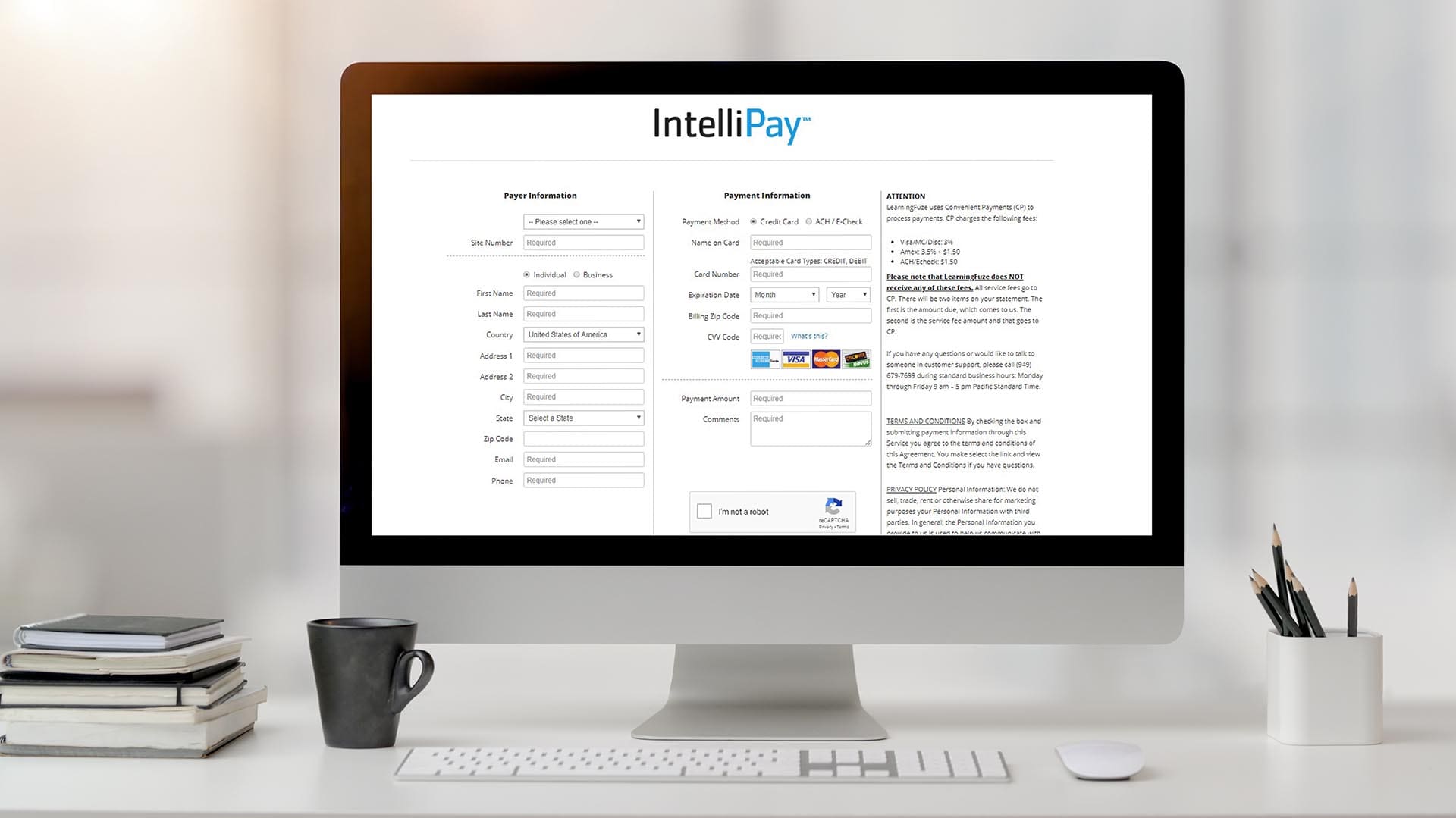
Smart Terminal is your online tool for entering manual transactions. You may be issuing a credit (refund) for a prior purchase or entering a credit card transaction for authorization for an order taken over the phone or fax.

Smart Terminal has many powerful features and is highly configurable so you can adapt it to your business needs.

Smart Terminal Configuration

The configuration settings for Smart Terminal are within the secure Account Management System under the "Edit Configuration" menu. There are more details about the Edit Configuration screen in the Account Management System documentation if you need more information than that provided here, please refer to that document.

These settings control what fields are required to have a value entered and which fields are visible and editable. A field set as "Required" will show a vertical red bar next to it and any transaction submitted without a value in that field will cause Smart Terminal to display a message alerting you to enter the required information.

Fields set as "Editable" will be visible on the transaction page allowing input, but won't be required unless you set it to be so.

There are additional configuration settings in your account management screen that affect Smart Terminal.

E-Mail Receipts - If E-Mail receipts to customer are selected, Smart Terminal will attempt to send an email receipt to the customer's email address that you entered on the Smart Terminal page. Of course that means that the email field must be set to Editable, and possibly Required.

Sending email receipts to your customers is recommended. It gives them a credit card transaction receipt for the transaction you just ran and helps remind them that they indeed paid you. Our experience shows that not sending your customers these transaction receipts, regardless of whether your shopping cart also sends an email Order receipt, may increase your refund or chargeback rates. These receipts remind the customer of his purchase in real time.

Likewise, an E-Mail receipt will be sent to you if "to Merchant" is selected. This email will be sent to your email address you entered in your configuration page, and a copy will also be sent to the "Copy" address.

Invoice Numbering - Unless you are going to manually enter invoice numbers in your Smart Terminal display, it's a good idea to select Generate Unique Invoice Numbering in your configuration. Generally, you should also set Require Unique on as well. With these set, the IntelliPay system will automatically generate invoice numbers for you.

If you will supply the invoice numbers, you can leave "Require Unique" on and we'll guarantee that you or your staff enter unique numbers for each transaction.

Visa requires invoice numbers with each authorization request. Without them, transactions will fail so it's important to solve the invoice number issue at the start.

Entering a Smart Terminal Transaction

Remember all required fields must be completed.

Order Information

Invoice Number - Either fill in your own invoice number or Smart Terminal will generate one for you depending on your settings in the Configuration settings.

Description - Enter any description you like about this transaction. Reference your own internal order numbers or a brief text description of the transaction. Remember that IntelliPay processes the transaction for the total order amount only, including shipping and taxes, so the Description field is more useful in describing the entire order or transaction.

Amount - The total dollar amount of the transaction you're running. You must include a decimal point and the cents, even if they're zeros.

Payment Information

Transaction Type - The Smart Terminal supports 5 transaction types:

Normal Transaction - This is the standard transaction type. This is used when you want to charge a credit card. When you submit the Normal Transaction, IntelliPay will send the authorization request to your bank network who will authorize the card transaction or decline it. If the transaction is declined, you will receive a message with the decline message. You will have the opportunity to re-run the transaction with a different card or other details. If the transaction is approved, you will receive the a receipt page with the approval code and customer transaction information.

Once a transaction is approved the transaction is placed within your "Open Batch" (viewable from the Open Batch within Credit Card Activity area). Your open batch automatically settles or closes every night.


Pre Authorization Transaction - Pre-Authorizatoin transactions are just like Normal Authorizations except the authorized transaction is not placed into the Open Batch. Instead the transaction is placed in the Pending Authorizations. Pre-Authorizations are a great way to confirm funds availability in circumstances when the product or service may be delayed. When the circumstances are right, you can log in to your Merchant Management menu, go to "Credit Card Activity" and then click on the go button next to "Pending Auth Only Items" link to view all Pre-Authorized transactions. Check off the transactions that you're ready to settle, hit the "Settle Marked Transactions" button and we'll move those transactions into your Open Batch.

Important note about Pre-Authorization transactions: A pre-authorization is only good for a specific amount of time. When a pre-authorization is done on a card, the card holder's available credit on his card has been reduced by the amount of the authorization. The cardholder's issuing bank determines how long an authorization is "valid" for. Some issuing banks set authorizations for as little as seven days, others set it for two or three weeks. IntelliPay does not have any way of determining what the time frame is for those authorizations. If you do not place the pre-authorized transaction in the open batch for settlement within the issuing card banks time frame then authorized amount is returned to the card automatically. The card holder would not be charged for the transaction until settlement occurs.

Generally, this means that if you think you're not going to settle a transaction for two weeks or more, then you may want to re-authorize, using a Normal Transaction, at the time of delivery. Then you would delete the Pre-Auth from your Pending Batch.


Credit/Return - Credit/Return option is used when processing refunds for prior authorizations that have settled. To perform a credit, you would need to go through your batch history. If you do not have the cardholder information available you can process a credit from within your batch details.

NOTE: If the original transaction is NOT settled - meaning that it's still in your Open Batch or your Pending Batch - you do not need to issue a credit. Simply Void the transaction and it won't settle and the customer won't have been charged in the first place. Please click here for detailed information about how to Void a Transaction.


Post-Authorization Transaction - A Post-Auth means "after the authorization". This type is seldom used, but is useful if you got your original authorization code from your merchant account bank through some other method such as their voice authorization facilities.

Enter the original transaction details, including the Original Approval Code, and this transaction will now settle in your normal Open Batch settlement.


AVS-Only Transaction - Enter the needed transaction data and we'll run an AVS-Only on the card number and cardholder details and return an AVS score for you. The primary use of this function is to validate the cardholder's card account.

NOTE: An AVS-Only is a transaction that never settles. We ignore the dollar amount of the sale you enter. AVS-Only is NOT an Approval or authorization. It simply returns the AVS score of the cardholder's account. More AVS data is available in our AVS documentation.


Credit Card Information

Payment Method - Select the correct card type or other payment method (if another one is visible) for this field.

Credit Card Number - Enter the credit card number, no spaces. Double check the number before Submitting the transaction. If you mistakenly enter a valid card number, but it's not the correct number of this card, you will still be billed for the transaction by your bank and by IntelliPay, and the transaction will settle - and you'll get the money from the wrong cardholder. This will undoubtedly become a chargeback when the real cardholder gets his monthly statement, resulting in more fees to you. (Also, your merchant account provider is aware of how many "charge backs" you have, and too many of them may affect your rates and other items.)

If you have submitted a transaction with the wrong card number and get it approved, you can still Void the transaction from today's Open Batch to prevent settlement. If you are able to Void the transaction, there's no need to run a credit to that cardholder.

Expiration Date - The expiration date of the card. Enter the data as all numbers or all numbers with a slash. MMYY or MM/YY.


Checking Account Information

Account Number - The account number of the customer’s bank account.. It’s usually located on the bottom of the check.

Routing Number - The routing number specifies which bank the customer is established with. It’s usually located at the bottom of the check. Right next to the customer’s account number.

Account Type - Select the type of bank account the customer is using. You will be able to choose: Checking or Savings.

Name on Bank Account - This will be the name as it appears on the check.


Example Check Information


Previous Transaction Information

Original Approval Code - Only valid when running a Post-Auth transaction. Enter the original approval code here exactly as given.

Auth Amt - Enter the exact amount of the earlier authorized amount. This is used when performing a partial refund.

Commercial Card Information - If your merchant account provider also set you up to accept Commercial Cards (credit cards specifically used by bigger businesses) you will see a section on Smart Terminal called "Commercial Card Information".

Tax Amount - The amount of the sales tax for this Commercial Card transaction.

Duty Amount - The amount of any import / export duties for this Commercial Card transaction.

Freight Amount - The dollar amount of shipping costs

P.O. Number - The Purchase Order Number associated with the Commercial Card purchase.

Ship-To Zip - The ZIP code of the destination address. This is a required field in all Commercial Card transactions


Customer Information Section

Customer ID - Enter any customer number or code you use to identify this customer

Name - The customer's name. (Usually as it appears on the card)

Street Address - The cardholders street address. Must include the street number. The street number is mandatory data for the AVS system, so entering the cardholder's address as "Somewhere St." when it should be "123 Somewhere St" will cause the AVS system to fail. While your transaction may still be approved, no AVS code will have been secured. Your merchant account provider will undoubtedly charge you more fees under the "Non-Qualified Rate" clause of your merchant agreement.

City - Enter the City name

State/Province - Select from the list

ZIP/ Postal Code - Also mandatory for AVS scoring (see "Street Address" above). Remember that AVS scoring is only available for U.S.-based credit cards. Non-U.S. cards do not receive AVS scores from the bank networks.

Country - Choose from the list

Phone - The customer's complete phone number

Fax - The customer's fax number.

E-Mail - The customer's e-mail address. Set this to Required if you are using e-mail transaction receipts.

User Fields 1-10 - Custom fields used for entering in additonal customer or transaction data. This data is not used in determining an approval or decline of a transaction. However the information entered into the User Fields will appear in your batch detals for each transaction.

 Back to Top of Page+


Untitled Document

Company Information

About IntelliPay | Privacy Policy | Acceptable Use & Copyright Policy | Home | Contact Us  | Support